LoadPlan User Guide
Everything you need to know to plan loads, generate documents, and manage your freight operations with LoadPlan.
Contents
Getting Started
LoadPlan is a web-based truck load planning platform. No installation required — everything runs in your browser.
- Create a free account — 1 month free trial, no credit card required.
- Set up your company details in Settings — this appears on all PDF documents you generate.
- Save your frequently used addresses in Contacts for quick auto-fill.
- Start planning loads in the 3D Load Planner.
3D Load Planner
The Load Planner is the core tool. It shows an interactive 3D view of your trailer with cargo arranged by our packing algorithm.
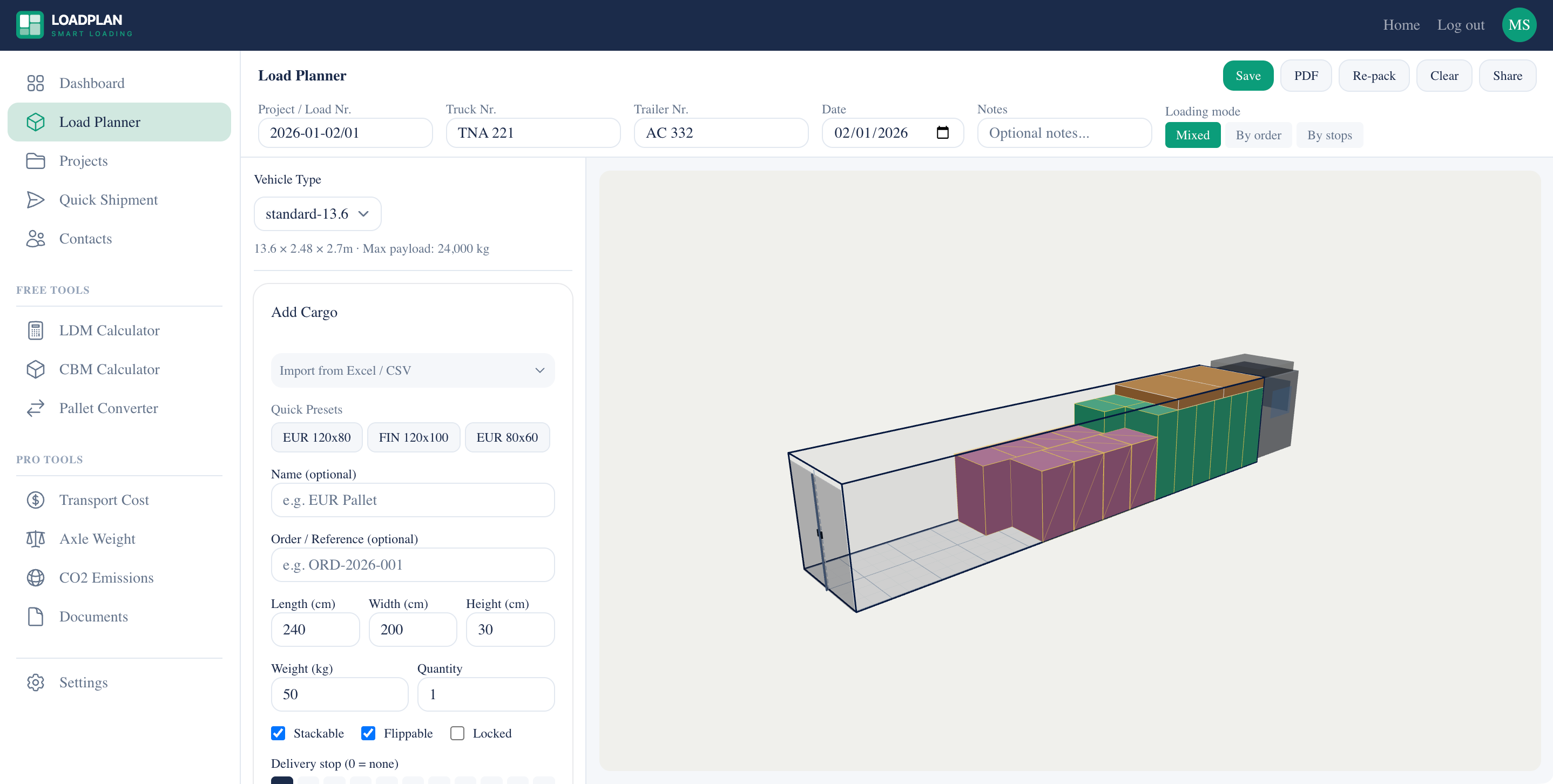
The Load Planner interface: left sidebar with cargo form and metrics, 3D trailer view on the right, project info bar at the top.
Layout
- Top bar: Project info (project number, truck/trailer numbers, date, notes), loading mode selector, and action buttons (Save, PDF, Re-pack, Clear, Share).
- Left sidebar: Vehicle selector, cargo form, import, cargo list, metrics, and loading sequence.
- Right panel: Interactive 3D trailer view with cargo visualization.
Choosing a Vehicle
Select from preset trailers or enter custom dimensions:
- Standard Trailer 13.6m — 13,600 × 2,480 × 2,700mm, 24,000 kg max payload
- Mega Trailer 13.6m — 13,600 × 2,480 × 3,000mm, 24,000 kg
- Short Trailer 7.7m — 7,700 × 2,480 × 2,700mm, 12,000 kg
- Van 3.5t — 4,200 × 2,000 × 2,100mm, 1,200 kg
- Custom — enter any length, width, height, and max payload
Adding Cargo
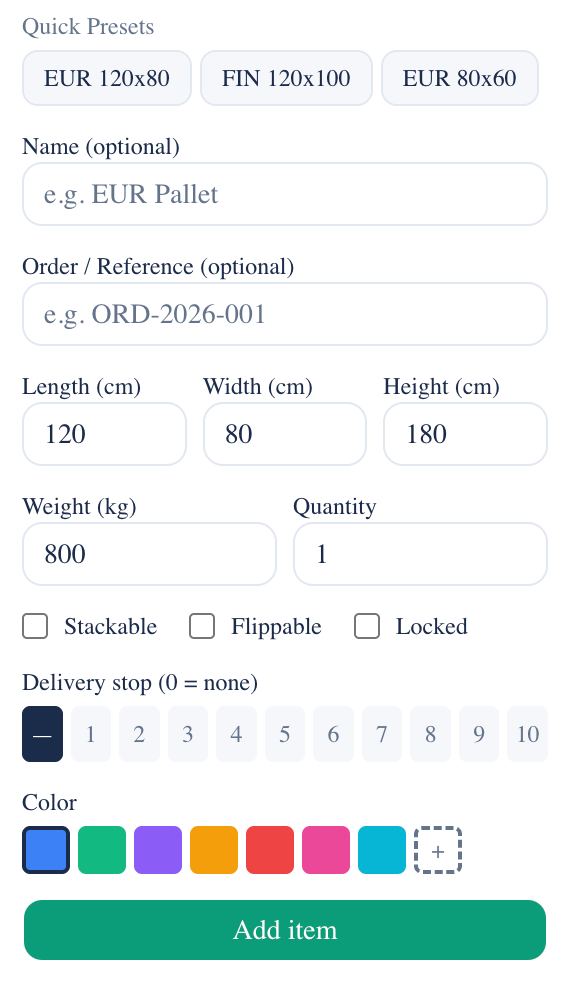
Use the Add Cargo form in the sidebar:
- Click a Quick Preset (EUR 1200×800, FIN 1200×1000, Half EUR) to auto-fill standard pallet dimensions, or enter custom dimensions manually.
- Set length, width, height in millimeters and weight in kilograms.
- Set quantity — how many identical items.
- Toggle Stackable and Flippable as needed.
- Optionally add a Name and Order / Reference number for identification.
- Choose a color to visually distinguish cargo groups in the 3D view. Click + for 36 additional colors.
- Click Add item. Cargo appears in the 3D view instantly — the algorithm arranges items automatically.
Each item in the Cargo List shows placed/total count, and has Stack and Flip toggles you can change after adding.
Import from Excel / CSV
Bulk-add cargo from a spreadsheet:
- Click Import from Excel / CSV below the cargo form.
- Upload a .csv, .xlsx, or .xls file.
- The importer detects columns by header name. Supported headers: Name, Length, Width, Height, Weight, Quantity, Stackable, Flippable, Order Ref, Color.
- Click Download template CSV to get a ready-to-fill template.
Stackable, Flippable & Locked
Two key properties control how the algorithm places items:
- Stackable — items can be placed on top of each other. The algorithm stacks identical items and places smaller items on top of larger surfaces. A stability limit prevents unsafe tall stacks.
- Flippable — items can be laid on their side. The algorithm tries up to 6 orientations (3 axes × 2 rotations) and picks whichever uses the least trailer space. Use for boxes and crates, NOT for loaded pallets.
- Locked — prevents the algorithm from rotating the item on the floor plane. The item stays exactly as you entered it (length along trailer, width across). Use for cargo with forklift access from one side or items that must face a specific direction.
Loading Modes

Choose in the top bar next to Notes:
- Mixed (default) — the algorithm freely mixes all cargo for maximum space utilization. Best for single-stop deliveries.
- By Order — items are loaded in the order you added them. First cargo group goes deepest (against the cab wall), last group goes nearest the doors.
- By Stops — for multi-stop deliveries. Assign a delivery stop number (1-10) to each cargo item. Items for the last stop load first (deepest in trailer, near cab). Items for stop 1 load last (nearest to doors, first to unload). This is LIFO (Last In, First Out) loading — the standard for multi-drop routes.
Axle Loads & Center of Gravity
The Load Planner automatically calculates axle loads and center of gravity as you add cargo:
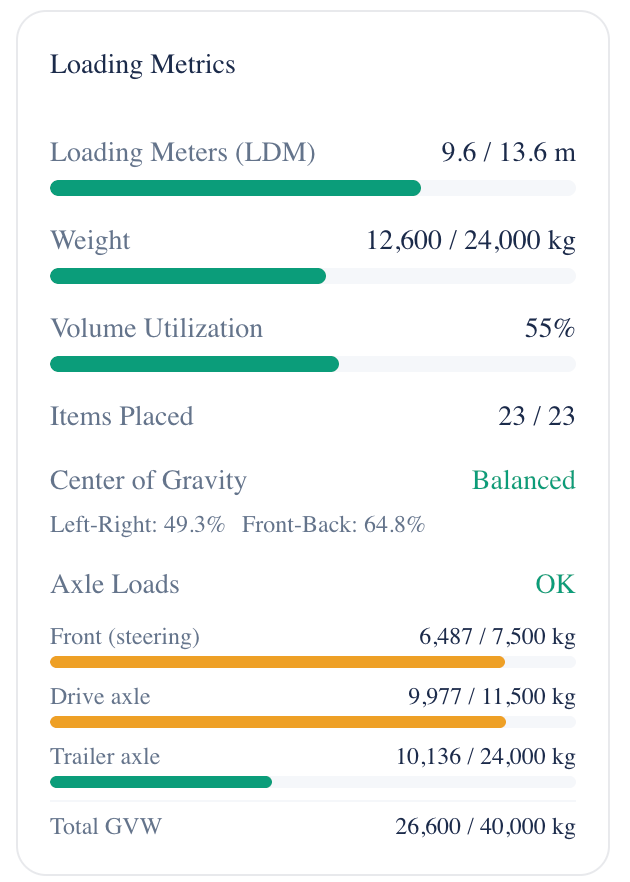
Loading Metrics: LDM usage, weight, volume, center of gravity, and axle load distribution with EU limits.
- Center of Gravity (CoG) — shows the left-right and front-back balance of your load as a percentage. 50% = perfectly centered. The indicator turns green when balanced, yellow when unbalanced.
- Axle Loads — for standard 13.6m and mega trailers, the metrics panel shows the weight on each axle group: front (steering), drive, and trailer bogie. Calculated using the Don-Bur moment balance method. EU legal limits are shown and overloads are flagged in red.
Axle load limits vary by country. The standalone Axle Weight Calculator tool lets you check against specific country limits (Germany, Poland, Lithuania, Finland, Sweden, etc.).
Saving & Projects
Click Save in the top bar to save your current load plan. Saved projects appear in the Projects page where you can:
- Open and continue editing any saved project
- See vehicle type, item count, LDM usage, and date for each project
- Delete projects you no longer need
- Create new projects from scratch
The Dashboard home page shows your 5 most recent projects for quick access.
PDF Export
Click PDF in the top bar to download a professional loading plan PDF. The PDF includes:
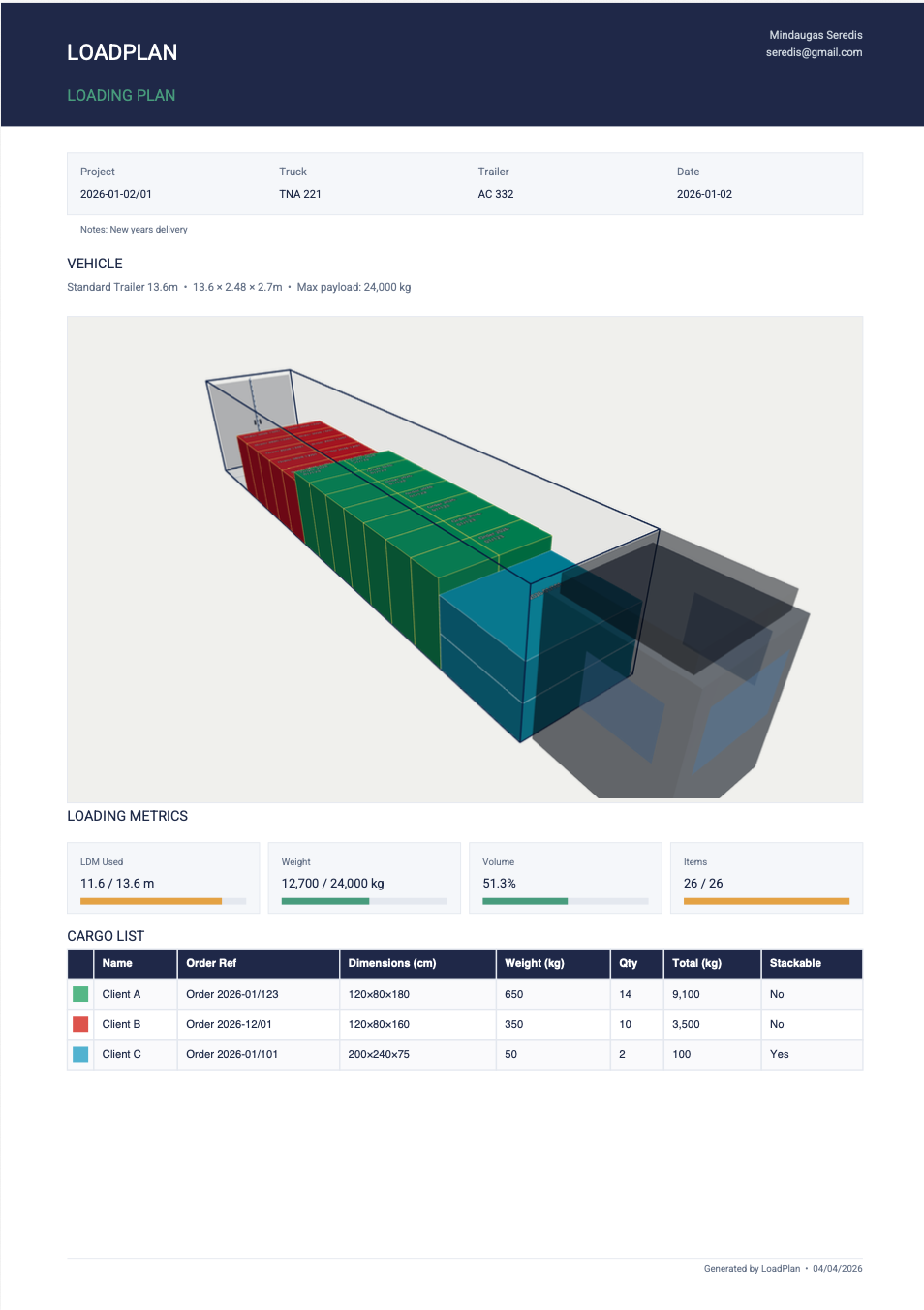
Example PDF: project info, 3D trailer view, loading metrics, and cargo table with color-coded items.
- Company header with your logo and contact details (from Settings)
- Project info bar (project number, truck, trailer, date, notes)
- Vehicle specifications
- 3D view screenshot of the loaded trailer
- Loading metrics (LDM, weight, volume utilization) with progress bars
- Cargo table with color indicators, names, order refs, dimensions, weights
- Footer with company address
Quick CMR
The Quick CMR page is the fastest way to generate a single CMR consignment note (4 copies). It's designed for quick, repeatable use:
- Pre-filled CMR number with the # auto-number button — pulls the next available number from your Library
- Per-section "Select from saved contacts..." dropdowns for sender, consignee, and carrier
- Top-bar buttons: New, Save to Library, Library →
- After clicking Generate CMR (4 copies), you can Download PDF, Send by Email, or Save to Library from the action card
All saved CMRs land in your Library, where you can reopen, duplicate, or delete them.
Quick Shipment
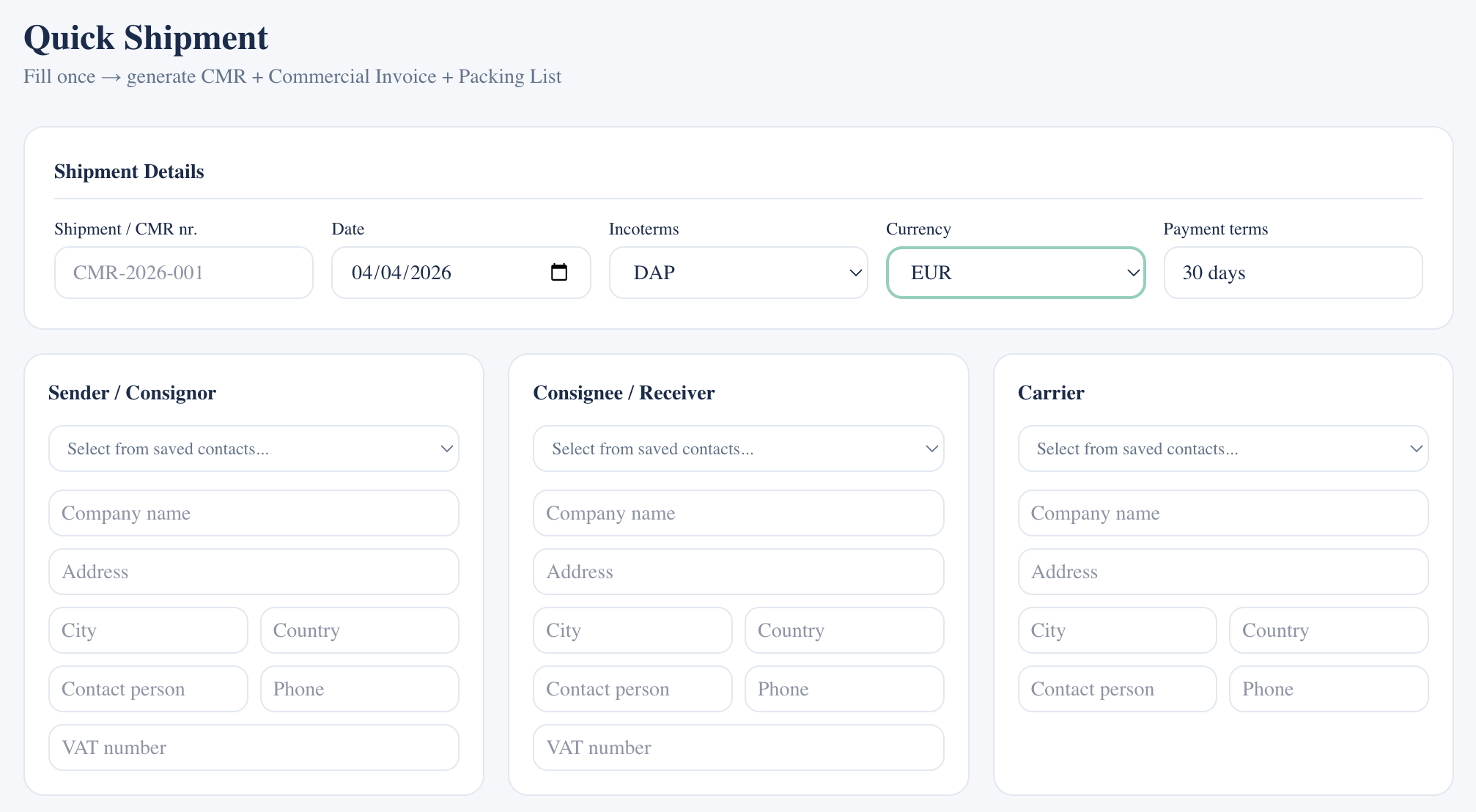
Quick Shipment: fill once, generate CMR + Commercial Invoice + Packing List.
The Quick Shipment page lets you fill in one form and generate three documents at once:
- CMR Consignment Note — with all 24 boxes per IRU 2007 format
- Commercial Invoice — with customs declaration and bank details
- Packing List — with weights, dimensions, and no prices
Select sender, consignee, and carrier from your saved Contacts for instant auto-fill. Or use "From settings" to fill the sender from your company profile.
Document Generator
The Documents page provides 25 professional document templates across 6 categories:
Core Transport
- CMR Consignment Note
- Freight Order
- Proof of Delivery
- Loading Confirmation
- Driver Instructions
Commercial
- Commercial Invoice
- Proforma Invoice
- Packing List
- Delivery Note
- Goods Receipt Note
Warehouse
- Warehouse Receipt
- Stock Release Order
- Inventory Report
- Damage Report
Dangerous Goods
- ADR Declaration (Road)
- DG Declaration (Sea/Air)
- Safety Data Sheet
Financial
- Freight Invoice
- Detention Notice
- CMR Claim Letter
Other
- Certificate of Origin
- Insurance Declaration
- Vehicle Checklist
Every template uses the same workflow as Quick CMR / Quick Shipment:
- Pick a template from the catalogue
- Fill the form — sections support "Fill from contacts..." dropdowns
- Click Generate at the bottom to produce the PDF
- Then Download PDF, Send by Email, or Save to Library
- Top-bar New / Save to Library / Library → buttons match the rest of the document tools
Each document includes legally required text, proper structure, and signature blocks.
Freight Order Contract
The Freight Order template is a full carrier subcontracting agreement — built around the standard cargo delivery agreement format used by professional European freight forwarders. It generates a 3-page binding contract:
- Page 1 — boxed numbered grid: cargo description (1–6), loading/destination places (8–9), arrival dates (10–11), additional info (12.1/12.2), vehicle & driver (13–16), agreed price banner (5.1)
- Pages 2–3 — full Section 5 (Payment) and Section 6 (Implementation): 40+ clauses with all penalty figures interpolated from the form
- Last page — Customer / Carrier parties block (19–31) with signature & stamp boxes
Editable penalty parameters with industry-standard defaults:
- Payment term (default 45 days), quick-pay discount (5%)
- Late CMR penalty (0.1%/day), missing customs docs (15%)
- Min CMR insurance (€300,000), pallet penalty (€25/EU-PAL)
- Late loading (€200/day + €20/h), refusal (20% of freight, min €200)
- Sub-contracting (€10,000), contraband (€5,000), alcohol/drugs (€5,000)
The agreement number auto-generates as NNNN/YYMMDD/NNNNN using your company ID as prefix. The Customer block auto-fills from your Settings profile.
Library (Saved Documents)
The Library is your central archive of every document you save — across Quick CMR, Quick Shipment, and all Document Generator templates.
How it works:
- Click Save to Library on any document (top bar or post-generate card)
- The document is stored as form values + metadata — not as a PDF, so it's always re-generatable from current data
- Each save indexes the reference number, title, sender/recipient, and creation date for fast searching
What you can do in the Library:
- Search by reference, title, sender, or recipient
- Filter by document type with the chip row (CMR, Freight Order, Invoices, Transport, Warehouse, Dangerous Goods, Other)
- Open — click any row to reopen that document in its original generator with all fields prefilled
- Duplicate — creates a copy with the reference number cleared, ready for the next shipment with the same parties
- Delete — removes the saved document permanently
- Re-saving an Open or Duplicate updates the existing row — no accidental clones
Contacts & Address Book
Save your clients, carriers, warehouses, and consignees in Contacts:
- Color-coded by type (client, carrier, warehouse, consignee)
- Search and filter contacts
- Auto-fill in Quick CMR, Quick Shipment, and all document forms
- Store company name, address, Company ID (registration nr.), VAT number, contact person, phone, email
Company ID and VAT are stored as separate fields — important for the Freight Order contract, where the customer/carrier blocks distinguish between the two.
Free Calculator Tools
Three free tools available without an account:
- LDM Calculator — calculate loading meters for EUR, FIN, and custom pallets. Supports stacking factor and multiple items.
- CBM / Volume Calculator — calculate cubic meters, dimensional weight, and chargeable weight for road, air, sea, and courier shipments.
- Pallet Converter — visualize how many pallets fit in a trailer with a top-down SVG view. Compare EUR, FIN, half, quarter, and custom sizes.
Pro Tools
The sidebar groups Pro features into two sections:
Transport Documents — your full document workflow:
- Quick CMR — single CMR consignment note, fastest path
- Quick Shipment — CMR + Commercial Invoice + Packing List from one form
- Documents — 25 templates (Freight Order, ADR, POD, etc.)
- Contacts — address book for auto-fill
- Library — central archive of every saved document
Pro Tools — calculator suite:
- CO2 Emissions Calculator — calculate road freight emissions per GLEC Framework. Compare road vs rail vs sea. Supports Euro 3-6 classes and different fuel types.
- Axle Weight Calculator — calculate front, drive, and rear axle loads based on cargo position. Check against EU country limits (standard, Germany, Poland, Lithuania, Finland, Sweden, etc.).
- Transport Cost Calculator — full cost breakdown: fuel, driver, vehicle, tolls, ferry, insurance, overhead, and margin. Shows suggested selling price per km, LDM, pallet, and tonne.
All of the above require an active Pro subscription. Free trial: 1 month, no credit card.
Company Settings
In Settings, configure:
- Personal info: name, email, phone, position
- Company details: company name, address, city, country, postal code, Company ID (registration nr.), VAT number, phone, email, website
- Company logo: upload PNG or JPG (max 500KB) — appears on all PDFs
Company ID vs VAT: Company ID is the legal registration number (e.g. 302412564). VAT is the tax-registered identifier with country prefix (e.g. LT100004785614). They are separate fields because professional contracts (e.g. the Freight Order) display both.
The Settings page shows a live PDF Header Preview so you can see exactly how your details will appear on generated documents.
3D Viewer Controls
Rotate the view
Zoom in / out
Pan the camera
Select it (yellow highlight)
The trailer shows a cab at the front wall and doors at the rear. Cargo loads from the front toward the doors, with empty space left at the door end.
Need help? Have a feature request?
hello@loadplan.eu